
Shortcut in OP Auto Clicker
A great feature of OP Auto Clicker is the hotkey. You can start and stop your clicking session easily with a keyboard shortcut. You don’t have to switch to the OP Auto Clicker window anymore. Just press a single key or a key combination to start or stop a session. This works no matter what app is on your screen. The hotkey works in the background. This means it responds even if OP Auto Clicker is minimized and another program is active.
By default, OP Auto Clicker uses F6 as its start and stop hotkey. However, this can be changed to any key or key combination that suits your workflow. This guide shows you a simple three-step process to set a custom shortcut in OP Auto Clicker. It includes tips on picking the right key and solving any problems you might face.
Why Change the Default Hotkey?
The default F6 key works well for most users, but there are several situations where changing it makes sense:
• F6 might be used by a game or app you’re running with OP Auto Clicker. This can lead to conflicts.
• You may prefer a more comfortable key or combination that is easier to reach without looking away from your screen.
• Some keyboards, like compact or laptop ones, might not have easy-to-reach function keys. So, an alternative combination can be more practical.
• If you use multiple automation tools at the same time, give each one a unique hotkey. This helps prevent confusion and accidental triggers.
Changing the hotkey takes less than a minute. It’s the same process for any version of OP Auto Clicker.
How to Set a Shortcut in OP Auto Clicker
Follow these three steps exactly as shown on the official OP Auto Clicker website to set your custom keyboard shortcut.
Step 1 – Click the Hotkey Setting Button on the Main Panel
Open OP Auto Clicker by double clicking the executable file. Once the main interface is open, look for the Hotkey Setting button. This button is located on the main panel of the application, clearly labelled and easy to find even if you are using the tool for the first time.
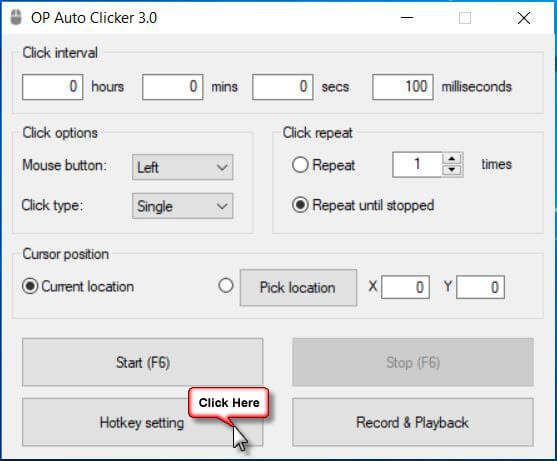
Click the Hotkey Setting button to open the hotkey configuration panel. A small panel will pop up on your screen. It will show the current hotkey assignments for the app. You will typically see entries for the Start/Stop action and potentially other functions depending on your version of the tool.
Do not close this panel you will use it in the next step to record your new shortcut.
Step 2 – Click the Start/Stop Button on the Hotkey Setting Panel
Inside the Hotkey Setting panel that has just opened, you will see a button labelled Start/Stop. This button is the hotkey for starting and stopping the auto clicker. Press it to begin or end your automated clicking session.
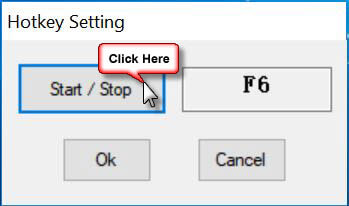
Click the Start/Stop button. Once clicked, the button text will change to indicate that OP Auto Clicker is now in listening mode it is waiting for you to press the key you want to assign as the new shortcut. The interface may display a prompt such as Press any key or show a blinking indicator to confirm it is ready to record your input.
At this point, do not press any key yet. Simply confirm that the application is in listening mode before moving to Step 3.
Step 3 – Press the Key You Want to Set as a Hotkey, Then Click OK
Now press the key or key combination you want to use as your new hotkey. OP Auto Clicker will immediately detect and display the key you have pressed. Here are some examples of keys and combinations that work well:
• F7, F8, F9 or F12 function keys that are rarely used by other applications.
• Ctrl + Q, Ctrl + H or Ctrl + J common modifier combinations that are easy to press with one hand.
- Use Alt + A, Alt + S, or Alt + D.
- Try other modifier combinations to avoid system shortcuts.
• Any other single key not in use by your operating system or the application running with OP Auto Clicker.
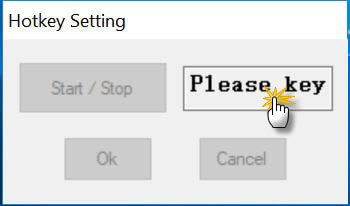
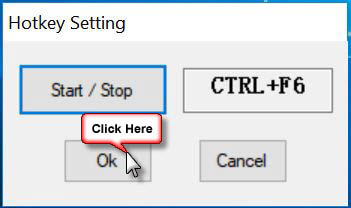
After you press your key, it will show up in the Hotkey Setting panel. This confirms that it has been recorded. At this point, click the OK button to save the new hotkey and close the panel. Your new shortcut is now active immediately you do not need to restart the application or take any additional steps.
From this point on, pressing your chosen key will start OP Auto Clicker if it is currently stopped and stop it if it is currently running. The same key toggles between both states, giving you instant control with a single press.
How to Test Your New Hotkey
Once you have saved your new shortcut, it is a good idea to test it straight away to confirm it is working correctly. Here is how:
1. Close the Hotkey Setting panel if it is still open.
2. Configure your click interval and other settings as usual in the main OP Auto Clicker interface.
3. Press your new hotkey. The auto clicker should begin clicking immediately.
4. Press the hotkey again. The auto clicker should stop.
5. Minimise the OP Auto Clicker window and press the hotkey again from another application. It should still start and stop correctly, confirming that the background hotkey functionality is working.
If the hotkey does not respond as expected, refer to the troubleshooting section below.
Choosing the Right Hotkey
Choosing the right key for your situation can greatly affect how well the tool fits into your workflow. Here are some guidelines to help you make a good choice:
Stick to Function Keys Where Possible
Keys such as F7, F8, F9 and F12 are the safest choice for most users. They rarely get used by standard apps or games. They’re easy to spot on the keyboard. Plus, they’re unlikely to clash with other programs running on your system. F6 is already the default, so if you are changing the hotkey, F7 or F8 are natural and convenient alternatives.
Avoid Common System Shortcuts
Avoid using these hotkey combos:
- Ctrl + C (copy)
- Ctrl + V (paste)
- Ctrl + Z (undo)
- Ctrl + W (close tab)
- Alt + F4 (close window)
They may cause issues.
These are commonly used in Windows. Using one of these will trigger OP Auto Clicker every time you do that common action. This can be disruptive and hard to work around.
Check for Conflicts in Your Target Application
If you use OP Auto Clicker with a game or program, check the assigned keys first. This helps you pick a hotkey that won’t conflict. In games, most keyboard keys control actions. So, function keys or Ctrl combinations are usually the safest choice.
Consider Ease of Access
Consider how fast and easy it is to access your key without interrupting your work on screen. If you need to stop the auto clicker urgently, you want a key that you can press instinctively without fumbling. Keys that are physically awkward to reach under pressure are not ideal for this purpose.
Troubleshooting Hotkey Issues
The Hotkey Is Not Responding
If your hotkey doesn’t start or stop OP Auto Clicker, it’s probably due to another app using the same key. Try changing the hotkey to a different key and test again. Function keys are the least likely to be claimed by other software.
The Hotkey Works in OP Auto Clicker but Not in the Background
If the hotkey works only when OP Auto Clicker is active but stops with other apps, it’s likely a permissions issue. Close OP Auto Clicker, right click the executable file and select Run as Administrator. This grants the application the elevated privileges it needs to register a global hotkey that works across all windows.
The Hotkey Was Saved but Is Now Showing as F6 Again
If your settings have reverted to the default, it is possible that the application was closed without saving or that a new version was downloaded which reset the configuration. Open the Hotkey Setting panel and reassign your preferred key, then click OK to save it again.
Frequently Asked Questions
Can I use a combination of two or three keys as my hotkey?
Yes. OP Auto Clicker lets you use key combos like Ctrl + F6, Alt + A, or Ctrl + Shift + S. To set a combo, just press the keys together in Step 3 during the listening phase. The full combination will be recorded and saved as your hotkey.
Can I set separate hotkeys for Start and Stop?
In the standard version of OP Auto Clicker, the Start and Stop functions share a single toggle hotkey the same key press both starts and stops the session. The same key cannot be split into two separate functions within the default interface.
Will my hotkey still work after I restart my computer?
Yes. OP Auto Clicker saves your hotkey setting between sessions. When you next open the application, your custom hotkey will still be active without needing to reconfigure it.
How do I reset the hotkey back to the default F6?
Open the Hotkey Setting panel, click the Start/Stop button to enter listening mode and press F6. Click OK to save. The default shortcut will be restored immediately.
Conclusion
To set a custom shortcut in OP Auto Clicker, follow these three simple steps:
- Open the Hotkey Setting panel from the main interface.
- Click the Start/Stop button to enter listening mode.
- Press the key you want to use, then click OK to save.
Your new hotkey works right away and globally. It even functions when OP Auto Clicker is running in the background. Choosing and setting up the right hotkey takes just a minute. This makes the tool much easier to use, especially when you need to start or stop clicking quickly without switching apps. Download OP Auto Clicker for free from the official website at autoclickerdownload.click and set up your perfect shortcut today.