
OP Auto Clicker Complete Guide
You have downloaded OP Auto Clicker and now you want to start using it but where do you begin? This guide shows you how to set up the tool on Windows, its most popular platform. You’ll be able to start your first automated click session in just a few minutes. Even if you have never used an auto clicker before, this guide will have you fully set up and clicking automatically before you know it. This guide is for Started with OP Auto Clicker For Windows and for Android Click Here.
Opening OP Auto Clicker for the First Time
On Windows, OP Auto Clicker is a portable application. You don’t need to install anything. Just double-click the downloaded file, and the app opens right away. A small, clean interface will appear on your screen with all the configuration options neatly laid out in front of you.
You usually don’t need admin privileges to run the tool. But if hotkeys aren’t working, try right-clicking the file and selecting Run as Administrator. This can fix permission issues.
Understanding the Interface
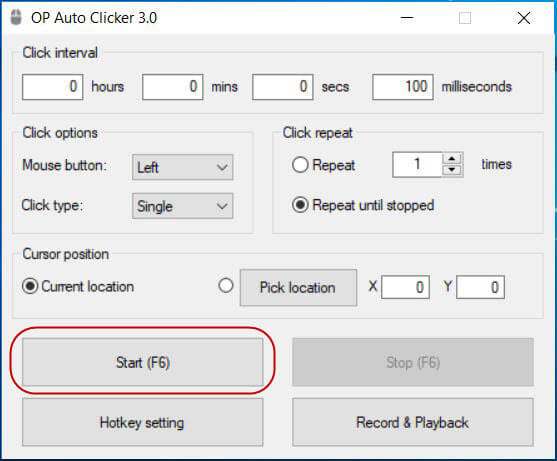
The OP Auto Clicker interface is straightforward and uncluttered. Here is a breakdown of the main sections you will see when you open the application:
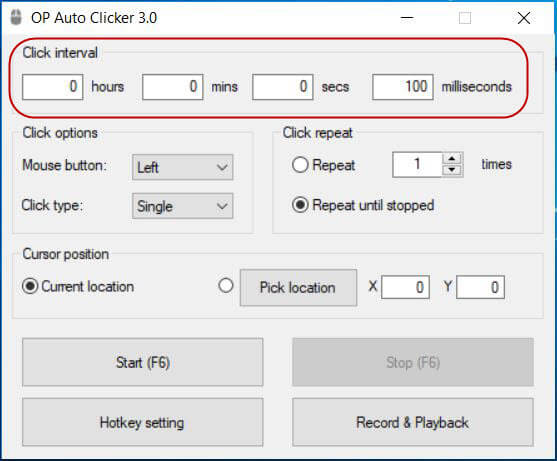
• Click Interval: Controls how much time passes between each automated click. You can set this in hours, minutes, seconds and milliseconds.
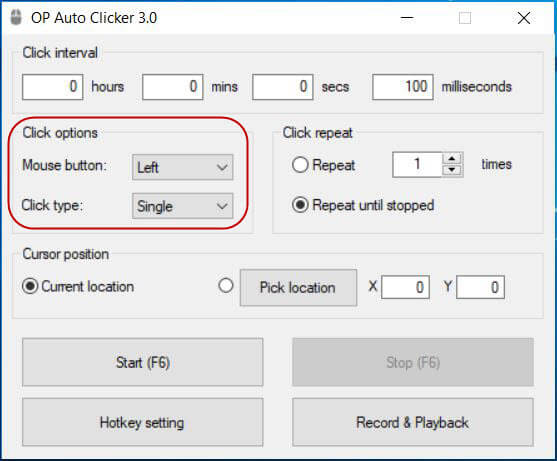
• Mouse Button: Lets you choose whether to simulate a left click, right click or middle click.
• Click Type: Choose between single click, double click or triple click depending on the action you want to automate.
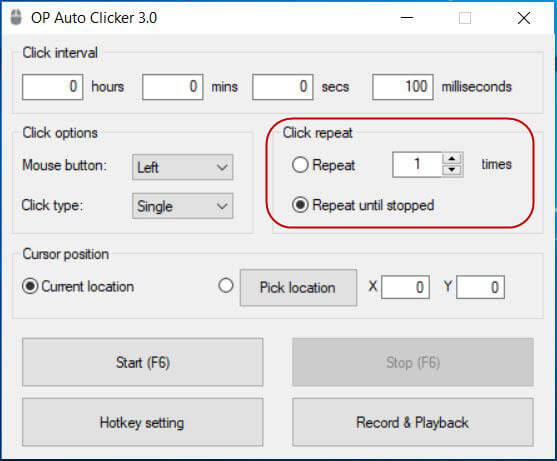
• Click Repeat: Set how many times you want the clicker to fire or select Repeat until stopped to keep clicking indefinitely.
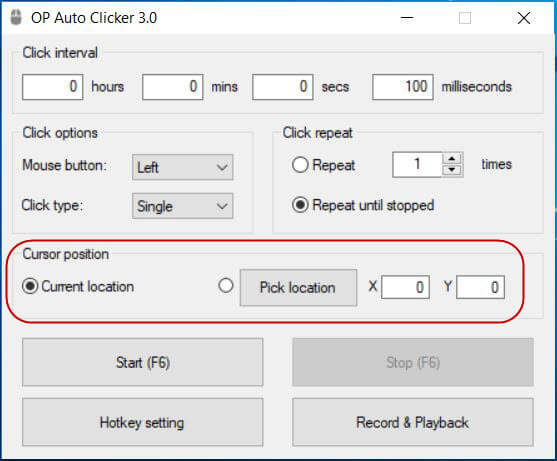
• Cursor Position: Choose whether the clicker follows your cursor dynamically or clicks at a fixed point on the screen.
• Hotkey Settings: Displays and allows you to change the keyboard shortcut used to start and stop the auto clicker.
Setting Up Your First Click Session
Follow these steps to configure and run your first automated click session:
Step 1 – Set Your Click Interval
The click interval determines how fast the auto clicker fires. If you want clicks every half a second, set the milliseconds field to 500. For rapid clicking at maximum speed, set all fields to zero. For slower, more deliberate clicks for example, once every two seconds set the seconds field to 2 and leave the others at zero.
Step 2 – Choose Your Mouse Button
Select Left, Right or Middle depending on which mouse button action you want to automate. For the vast majority of tasks and games, Left click is the correct choice.
Step 3 – Select Your Click Type
Choose Single, Double or Triple click. Single click covers most use cases. Double click is useful when the task requires opening files or confirming actions that need two rapid presses. Triple click can be helpful for selecting entire lines of text automatically.
Step 4 – Set Your Repeat Options
If you want the clicker to stop after a set number of clicks, enter that number in the repeat field. If you want it to keep going until you manually stop it which is common for gaming and monitoring tasks select Repeat until stopped.
Step 5 – Choose Your Cursor Position
This is one of the most important settings. You have two options. Dynamic Cursor Location means the clicker will click wherever your mouse cursor currently is, following it as you move. Pick Location lets you fix the click to a specific point on your screen. To use this, click the Pick Location button, then click the spot on your screen where you want the automated clicks to land. The coordinates will be saved automatically.
Step 6 – Start Clicking
Once you are happy with your settings, press the Start button in the application or press the F6 key on your keyboard. The auto clicker will begin immediately. To stop it, press F6 again or click the Stop button in the app. Your settings will be saved automatically for the next time you open the application.
Tips for Getting the Best Results
• If you are using a fixed location, make sure the window or application you are clicking in does not move or resize during the session.
• For gaming, test with a slow interval first before increasing the speed, as some games have click rate detection built in.
• If F6 is not working, another application may be using the same key. Use the Hotkey Settings panel to reassign it to a different key.